
You’re one click away from the character select screen, and then it hits you: “PlayStation(R) PC SDK Runtime Cannot Start Because It Is Missing From Your Computer.” The game refuses to boot, the error dialog stares back at you, and you’re left wondering if you need to reinstall the entire 80GB package. You don’t. This error is a missing runtime initialization issue, not a corrupted installation, and the fix is already sitting inside your game folder. Here’s exactly how to get past it and into the fight.
What Causes This Error
The PlayStation PC SDK runtime is a set of system-level components that MARVEL Tōkon: Fighting Souls requires to initialize on Windows. When these files are missing, outdated, or never properly registered, the game throws the runtime error at launch. The good news: the runtime files ship with the game itself. The bad news: Windows doesn’t always execute them during installation, especially if your user account lacks administrator privileges or the installer was interrupted.
The fix boils down to manually running these runtime files from the game’s installation directory. Two methods exist — a quick single-file approach and a more thorough multi-file sweep. Start with Method 1, and only escalate if the error persists.
Method 1: Run the PPC SDK Runtime File as Administrator
This is the fastest route to a fix. It targets the primary runtime file directly and takes under two minutes.
- Open Steam and go to your Library.
- Right-click on MARVEL Tōkon: Fighting Souls and select Manage > Browse local files. This opens the game installation folder in File Explorer.
- Navigate to the following path inside the game folder: MTFS > binaries > win64.
- Locate the file named PPC SDK runtime (it may display as “PPC_SDK_Runtime.exe” or similar depending on your Windows view settings).
- Right-click this file and select Run as administrator.
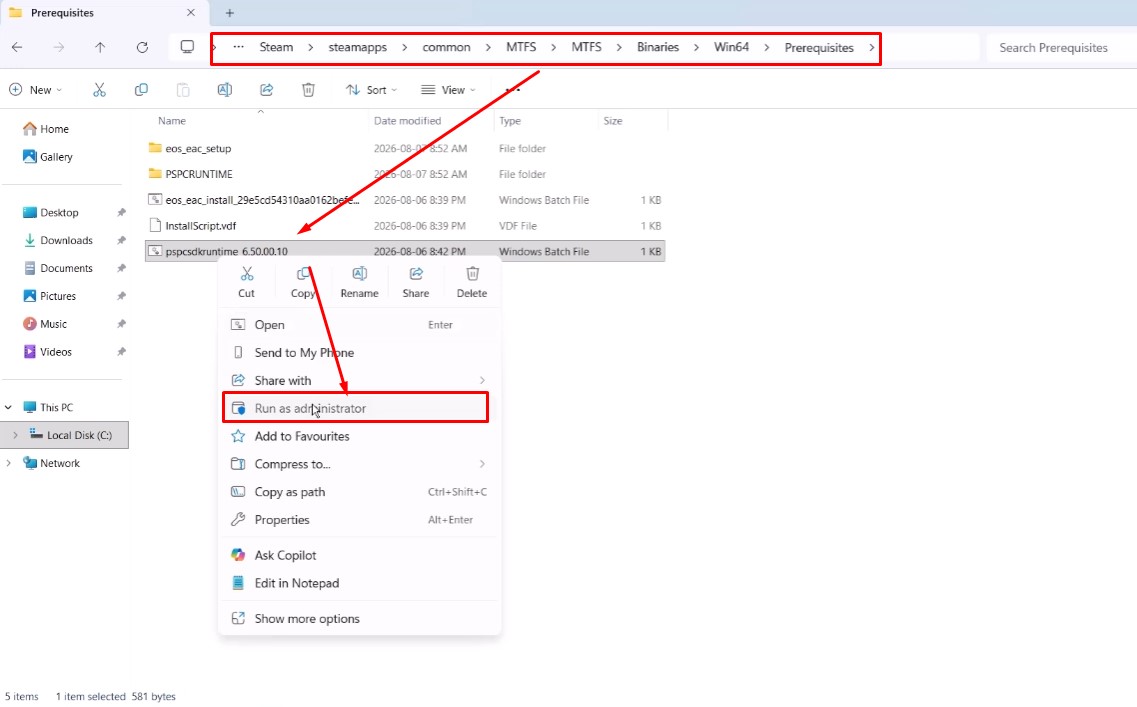
- Click Yes on the User Account Control prompt to allow the process to execute.
- Wait for the runtime window to appear and complete its initialization, then launch the game to check if the error is resolved.
Tip: If Windows doesn’t show the file extension, that’s fine. The runtime file is typically the only executable in the folder with “PPC SDK” in its name. If you see multiple similar files, pick the one marked as an Application type.
Method 2: Run All Runtime Files in the PSP Runtime Folder
If Method 1 doesn’t clear the error, the issue likely involves multiple runtime dependencies. The win64 folder contains a subfolder with additional runtime files that need to be registered in sequence.
- In the same win64 folder, locate and open the PSP runtime folder (or similarly named subfolder).
- Inside this folder, you will find multiple runtime files. Run each one in this exact order:
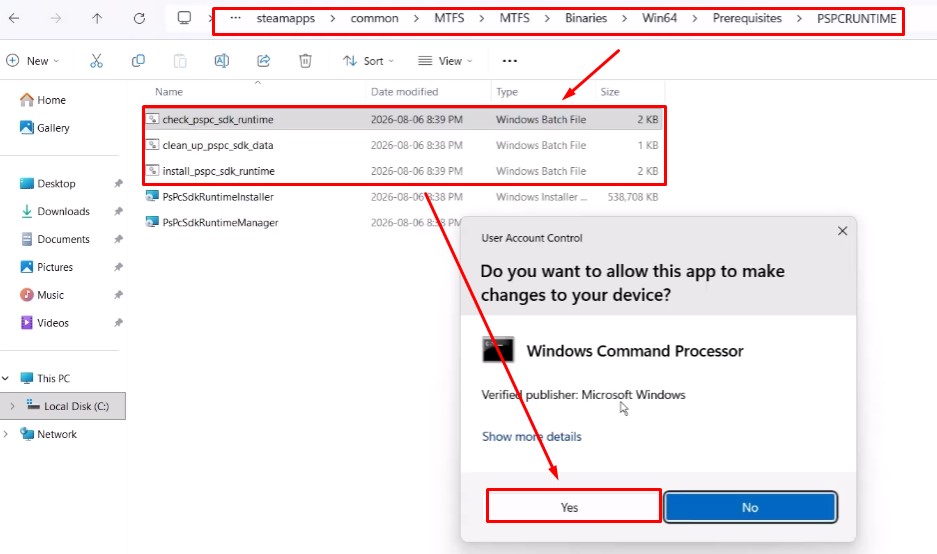
- Right-click the first file, select Run as administrator, click Yes to allow, then press any key when the process completes.
- Right-click the second file, select Run as administrator, click Yes to allow, then press any key.
- Right-click the third file (marked as an installer), select Run as administrator, click Yes to allow, and let the process complete on its own.
- After all three files have been run with admin rights, press any key on the final prompt to close the last window.
- Double-click the first file to run it normally and let the process complete.
- Double-click the second file, then double-click it again if needed, and wait for completion. Some runtimes require two passes to fully register.
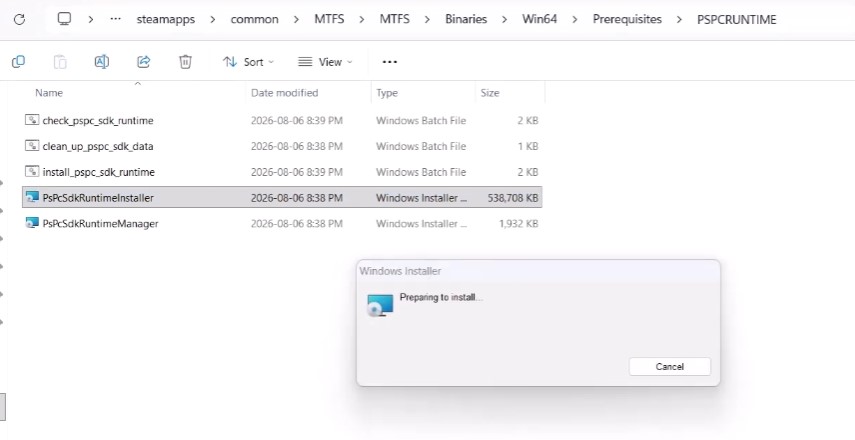
- Once all files have been executed, launch MARVEL Tōkon: Fighting Souls. The error should now be fixed.
Warning: Run the files in the exact order shown above. These runtimes have dependency chains, and executing them out of sequence can leave the SDK half-registered, which produces the same error on your next launch attempt.
Tips and Troubleshooting
| Issue | Likely Cause | Solution |
|---|---|---|
| Runtime folders not visible | Hidden files setting is off | Enable View > Show > Hidden items in File Explorer |
| “Access denied” when running files | Insufficient user privileges | Log into an account with administrator rights |
| Error persists after both methods | Incomplete game installation | Verify game files via Steam Properties |
| Runtime window opens and closes instantly | Normal behavior | The process runs in the background; proceed to launch the game |
- Administrator privileges are mandatory. If your Windows account is a standard user, the runtime files will fail to register even if you run them manually. Switch to an admin account before attempting either method.
- Hidden files can block progress. If you can’t find the PPC SDK runtime file or the PSP runtime folder, enable hidden items in File Explorer (View > Show > Hidden items). Some runtime components are marked as system files and won’t appear by default.
- Verify your installation if nothing works. Right-click the game in Steam, select Properties > Local Files > Verify integrity of game files. This catches any missing or corrupted files that the runtime fix can’t address.
- This fix is Windows-specific. If you’re on Steam Deck or Linux via Proton, the runtime files behave differently, and these steps may not apply.
The runtime error in MARVEL Tōkon: Fighting Souls is annoying, but it’s also one of the most straightforward fixes in the game’s launch issues. Run the runtime files, verify they register, and you’re back to the roster screen. If you hit a snag, the verification step catches anything the manual approach misses.