
The “Easy Anti-Cheat Is Not Installed” error is the single most common reason MARVEL Tōkon: Fighting Souls refuses to boot. You hit play, the window flashes, and nothing happens — or you get a pop-up telling you EAC is missing. The fix is almost always a broken or outdated EasyAntiCheat installation inside the game folder. This guide walks through the full repair sequence, from running the EAC installer directly to nuking the folder and letting Steam rebuild it. One of these steps will get you back into the fight.
What’s Actually Wrong
The game ships with Easy Anti-Cheat bundled in its local files, but the installer doesn’t always run correctly on first launch. Windows updates, antivirus interference, or a partial Steam download can leave the EAC service unregistered. The error message is vague, but the cause is almost always one of three things: the EAC service isn’t installed, the game’s EAC files are corrupted, or the installer needs elevated permissions.
The fix process is straightforward: run the EAC installer manually, then escalate to the command-line repair if needed, and finally fall back to a file verification cycle.
Step-by-Step Fix
1. Locate the game installation folder.
Right-click MARVEL Tōkon: Fighting Souls in your Steam library. Select Manage > Browse local files. This opens the game’s root directory.
2. Navigate to the EasyAntiCheat folder.
Open the EasyAntiCheat folder, then go into binaries > win64.
3. Run the EAC installer as administrator.
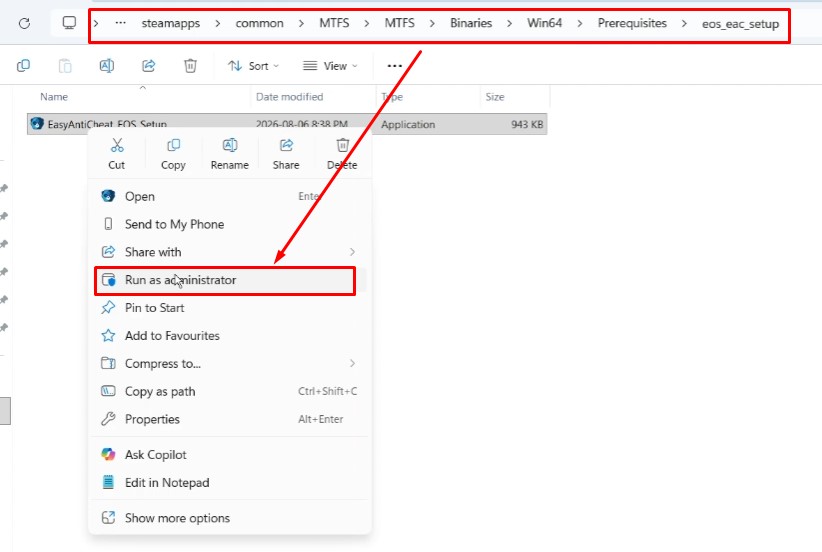
Look for a file named EasyAntiCheat install (or similar — the exact name varies by game build). Right-click it and select Run as administrator. Accept any UAC prompts.
4. If the error persists, run the setup file.
In the same folder, locate EasyAntiCheat setup. Right-click it and run as administrator. This opens the EAC repair interface for the game.
5. Create a desktop shortcut to the setup file.
If the standard install still fails, right-click EasyAntiCheat setup, select Show more options > Send to > Desktop (create shortcut).
6. Add the prod-fn command-line argument.
Right-click the new desktop shortcut and select Properties. Under the Shortcut tab, find the Target field. Click at the end of the line, after the closing quotation mark, add a space, then type:
“`
install prod-fn
“`
The full Target line should look like this:
“`
“C:\Program Files (x86)\Steam\steamapps\common\MARVEL Tōkon Fighting Souls\EasyAntiCheat\binaries\win64\EasyAntiCheat setup.exe” install prod-fn
“`
7. Run the shortcut as administrator.
Click Apply and OK to save the change. Right-click the shortcut and select Run as administrator. This forces EAC to install with the correct game identifier.
8. Launch the game.
Start MARVEL Tōkon: Fighting Souls normally. If the error is gone, you’re done.
If It Still Fails: Delete and Verify
9. Back up the EasyAntiCheat folder.
Go back to the game installation folder. Right-click the EasyAntiCheat folder and copy it to a safe location (like your Desktop or Documents). This is your safety net.
10. Delete the original folder.
Right-click the EasyAntiCheat folder in the game directory and select Delete.
11. Verify game files in Steam.
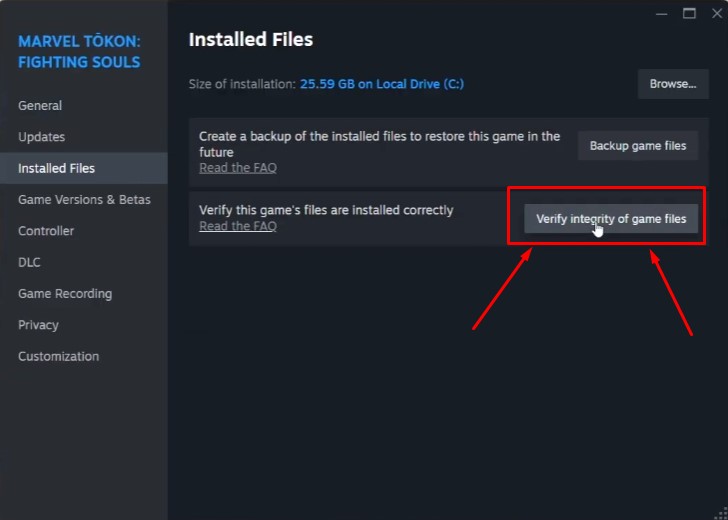
In Steam, right-click the game, select Properties, go to the Installed Files tab, and click Verify integrity of game files. Wait for the process to complete — it will re-download the entire EasyAntiCheat folder.
12. Launch the game again.
The verification restores a clean EAC installation. Start MARVEL Tōkon: Fighting Souls and confirm the error is resolved.
Key Details and Pitfalls
| Mistake | Consequence | Fix |
|---|---|---|
| Running the installer without admin rights | EAC service fails to register | Always right-click and select “Run as administrator” |
| Missing the space after the quotation mark in the Target field | Command fails silently | Ensure exactly one space between " and install |
Typing prod-fn with an underscore or space instead of a hyphen |
Command not recognized | Use a dash: prod-fn |
| Deleting the EasyAntiCheat folder without a backup | Lost files if verification fails | Always copy the folder to a backup location first |
| Skipping the Steam verification step | Corrupted files remain | Run Verify integrity of game files to restore everything |
Warning: When editing the Target field, do not remove or alter the quotation marks around the existing path. Only append the space and install prod-fn after the final quote.
Tip: The install prod-fn command tells EAC to register itself for the game’s specific production identifier. This is the same command the game’s launcher runs automatically — doing it manually just forces the process.
If none of these steps clear the error, the issue is likely outside the EAC folder itself. Try reinstalling the game completely, or check for pending Windows updates that might be blocking the anti-cheat service from starting.