
You bought Avatar Legends: The Fighting Game, installed it, clicked play — and nothing happened. Or the screen went black. Or it crashed before the main menu. This is not a hardware problem you need to fix with a new GPU. It is a configuration problem. Most launch failures in this game trace back to five root causes: admin permissions, compatibility mode, antivirus interference, corrupted cache, or driver conflicts. This guide walks through every fix in order, from a simple restart to a full reinstall on a different drive. Follow the steps sequentially. Do not skip ahead.
The Problem: Game Won’t Start, Black Screen, or Crash on Desktop
The game fails to launch from Steam, hangs on a black screen, freezes during loading, or crashes back to desktop. These symptoms appear immediately or within seconds of launching. The fixes below cover all scenarios.
Step-by-Step Fixes
Start with the simplest. Move forward only if the current step fails.
- Restart your PC. Then launch the game directly from the installation folder. In Steam, right-click the game, select Manage > Browse local files. Double-click the game EXE.
- Right-click the game EXE, go to Properties > Compatibility tab. Check “Run this program as an administrator”. Click Apply and OK. Launch the game.
- In the same Compatibility tab, check “Run this program in compatibility mode for” and select Windows 8. Apply and launch.
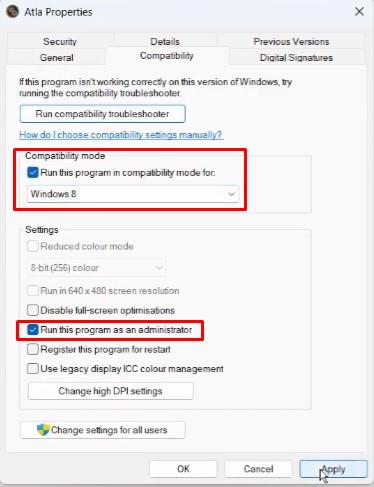
- Also check “Disable fullscreen optimizations” in the Compatibility tab. Apply and launch.
- Uncheck any other compatibility boxes if previously set. Apply and launch.
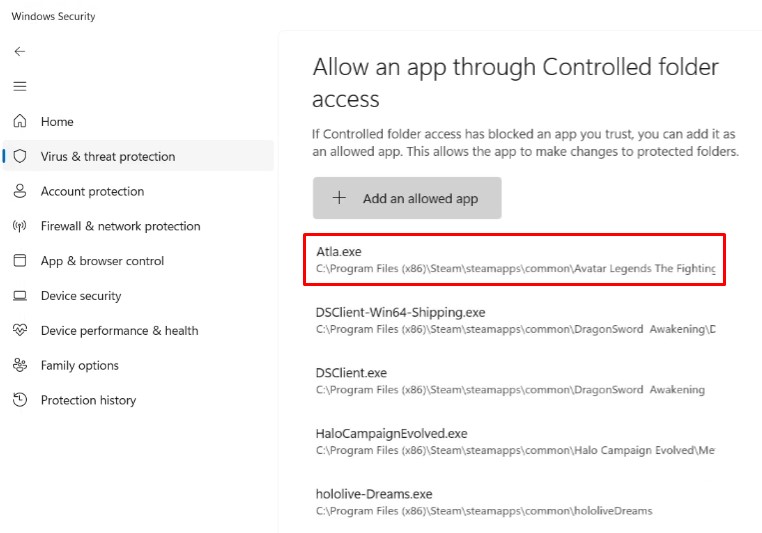
- Allow the game EXE through antivirus. In Windows Security, go to Virus & threat protection > Manage ransomware protection > Allow an app through Controlled folder access. Add the game EXE. Then in Control Panel > System and Security > Windows Defender Firewall > Allow an app or feature, add the game EXE.
- If using third-party antivirus (Avast, Norton, Bitdefender, McAfee), allow the game EXE in that program.
- Type “smart app control” in Windows search. Turn it off if on. Launch the game. Re-enable after playing.
- Disconnect multiple monitors. Lower monitor refresh rate (e.g., from 240Hz to 120Hz or 60Hz).
- Rename the save game folder. Navigate to the game installation folder, find the save folder, copy it as backup, then rename the original folder. The game will start fresh.
- Enable debug mode. Right-click desktop > Nvidia Control Panel > Help > check Debug Mode. Launch the game.
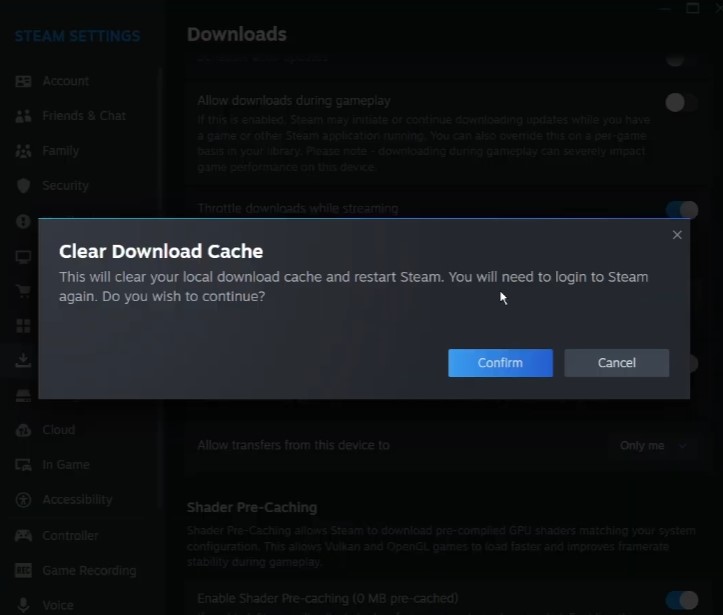
- Clear Steam download cache. Steam > Settings > Downloads > Clear Download Cache. Confirm. Steam restarts; log in and launch the game.
- Verify game files. Right-click the game in Steam > Properties > Installed Files > Verify integrity of game files.
- Install Visual C++ Redistributables. Download and install both x86 and x64 versions from Microsoft’s official site. If Repair appears, click Repair; if Install, click Install. Restart PC.
- Disable Steam overlay. Right-click the game in Steam > Properties > uncheck “Enable the Steam Overlay while in-game”. Also disable overlays in Discord, Nvidia app, etc.
- Do not overclock. Close overclocking applications like MSI Afterburner, RivaTuner. Set GPU to default.
- Perform a clean installation of graphics driver. For Nvidia, download the latest driver from Nvidia’s website. Run the installer, select Custom, check “Perform a clean installation”, then install. Restart PC. For AMD, update driver from AMD’s website.
- Update Windows. Go to Windows Update > Check for updates. Install all updates, restart PC.
- Run the game on dedicated GPU. Type “graphics settings” in Windows search. Add the game EXE as a desktop app. Set GPU preference to High Performance (your dedicated graphics card).
- Desktop users: Connect monitor to dedicated GPU slot, not motherboard slot.
- Disable integrated graphics. Right-click Start > Device Manager > Display adapters. Right-click integrated GPU (e.g., Intel) and select Disable device. Re-enable after playing.
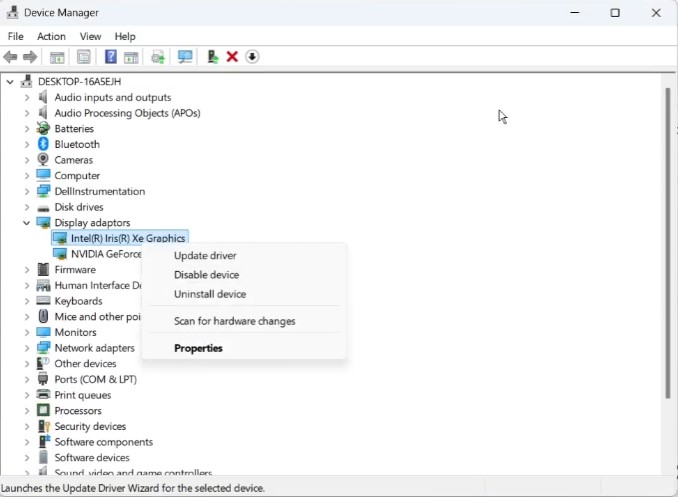
- Disconnect multiple monitors; try single monitor.
- Toggle Hardware-accelerated GPU scheduling. Type “graphics settings” in Windows search > Advanced graphics settings. If on, turn off; if off, turn on. Restart PC.
- Try Power Saver mode. Control Panel > Hardware and Sound > Power Options > select Power Saver. Restart PC.
- Unplug all external devices (HOTAS, wheel, pedals, USB adapters, extra controllers). Close third-party applications and services. Remove any undervolt.
- Update BIOS. Visit your system manufacturer’s website, download and install the latest BIOS. For laptops, ensure battery is charged and AC adapter is connected.
- Uninstall and reinstall the game to a different drive. If installed on a non-C drive, install to C drive. If already on C drive, install to another SSD.
Tips & Troubleshooting
If renaming the save folder, always create a backup first to avoid losing progress. After disabling integrated graphics, remember to re-enable it after playing to avoid system issues. For BIOS updates, follow the manufacturer’s instructions carefully to prevent system damage. If none of the steps work, consider reinstalling the game to a different drive as a last resort.