
If you’re chasing every last achievement and you’ve ever wanted to peek behind the curtain of Nazi Zombies, the developer console is where that happens. I’m writing this because the console is genuinely useful once you know how it works, and because the game doesn’t exactly hand you a tutorial for it. Below I cover how to switch it on, how to pop it open, every command I’ve confirmed works, and how to use the error output to get real problems in front of the developers.
One thing I want to get out of the way before anyone dives in: this is only relevant to the Early Access build, as of 2026, and it is an actual developer tool. If you don’t already know what a console is or what it does, this probably isn’t the guide for you yet. There is a reason the original writeup keeps warning you off, and I’m keeping that spirit — tinkering with dev commands can break your session or your save in ways nobody around here can undo for you.
Before You Touch Anything
I’ll say this plainly because I’d rather you hear it once too many times than once too few: the console is a tool the developers left in for testing, not a feature meant for a normal playthrough. If you don’t recognize what a dev console is, close this page and go enjoy the game — you genuinely don’t need it. If you do know your way around one, read on, because everything past this point assumes you’re comfortable taking the risk on your own save.
Turning On the Dev Console
Enabling it is a quick trip through the settings, and the order matters if you’ve never opened this menu before. Here’s exactly what I do:
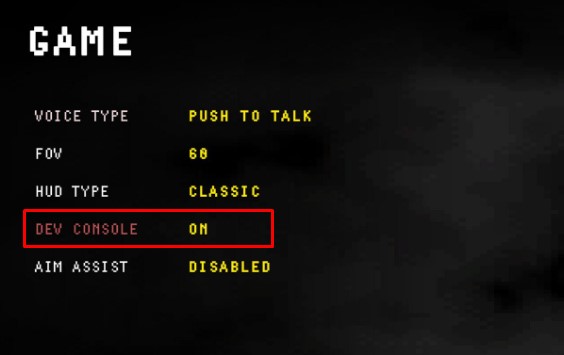
- Go to Options.
- Open the Game tab.
- Look for the Dev Console entry.
- Click it to turn it on.
That’s the whole switch — no config file editing, no launch arguments. Just make sure you’ve actually toggled it before you try to open it.
Opening the Console In-Game
With Dev Console enabled in Options, press the tilde key (~) on your keyboard. The console appears in the top-left corner of the screen, which is a nice low-key spot that won’t bury your view of the HUD. Press the same tilde key (~) again whenever you want to close it.
I’ll be honest, the first time it pops open it can be a little jarring if you weren’t expecting a wall of text over your game — if that feeling hits you hard, just close the game and step away. There’s no harm in pretending you never found this page.
Typing Commands
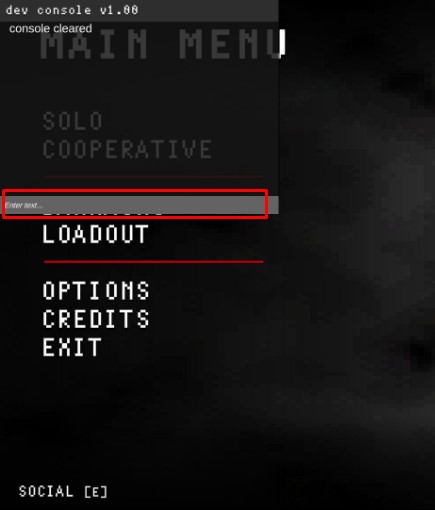
To actually use the console, click the bar at the bottom where it says “Enter text“, type one of the commands below, and hit Enter. That’s the entire input flow — there’s no separate confirmation step, so whatever you type runs the moment you commit to it.
Available Commands
These are the commands I’ve got listed from the game. A couple of them are flagged dev-only, meaning they aren’t intended for regular play — I’d treat those as last-resort tools rather than something to casually fire off.
| Command | What It Does | My Rating |
|---|---|---|
| clear | Clears the console of any messages | Essential |
| cls | Clears the console of any messages | Essential |
| fps | Toggles the FPS window | Optional |
| freecam | Toggles freecam | Optional |
| givePoints | Gives the player 5000 points (dev only) | Skip |
| hideui | Hides the in-game HUD (meant to be a toggle) | Optional |
| showui | Shows the in-game HUD (meant to be a toggle) | Optional |
| unlock_all | Unlocks everything and sets rank and prestige to max (dev only) | Skip |
Two of these — givePoints and unlock_all — are clearly meant for the devs rather than players. I’d leave them alone unless you know exactly what you’re doing, because they hand you progression you didn’t earn and can muddy how a save is supposed to behave. On the practical side, clear and cls do the same job, so pick whichever your fingers find first; I keep defaulting to clear out of habit. And note that hideui/showui are described as intended toggles, so if one of them seems to act one-way in your build, that’s worth flagging rather than fighting with.
Catching Errors for Bug Reports
One of the more underrated uses of the console is that it will spit out an error whenever something goes wrong in the game. If you suddenly see ERROR on screen, press the tilde key (~) and read what the console logged.
Even if the message looks like gibberish to you, don’t just shrug and move on. Grab a screenshot with F12, Print Screen, or the Steam Screenshot button, upload it to Steam, then open a new post on the discussions board for the game and attach your image. I’ve lost count of how many vague “game broke” posts never get resolved because the reporter didn’t capture the console output — that screenshot is usually the single most useful thing you can hand a developer, whether or not the text means anything to you.
Conclusion
That’s the full run of it: turn it on in Options under the Game tab, open it with tilde, type your command, and drop a screenshot on the discussion board any time the console throws an error. Use it thoughtfully, and it becomes a genuinely handy tool for tracking down what’s actually wrong.