
One thing bugged me for a long time in Car Park Capital: you can build genuinely nice stuff in the scenario editor, and then the normal game acts like none of it exists. It took me a while to figure out that there’s a completely legit workaround, and it needs no mods, no external tools, nothing.
What follows is the exact method I use to take self-made structures — office towers, park areas, whole building complexes — out of the scenario editor and drop them into a regular city as often as I want. If you’re still getting your bearings with the game’s building tools in general, it’s worth skimming a begginers’ guide first, because the blueprint workflow assumes you already know your way around the construction menu.
Building and saving your first blueprint
Everything starts inside the scenario editor. From the main menu, hit New Game, then Custom Scenarios, then Create Custom Scenario, and finally Launch Scenario Editor. You’ll be asked to give the scenario a name before it opens — pick anything, just don’t skip it.
Once you’re in, build whatever you like. Office buildings, parks, multi-part complexes — the editor doesn’t care what you’re making.
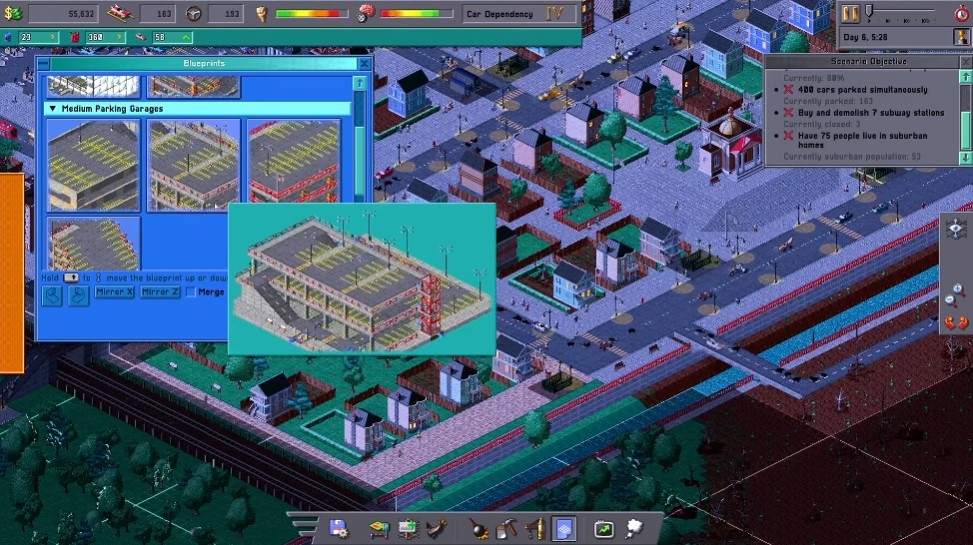
To capture a structure as a reusable blueprint, open Blueprints, choose Create, then drag your selection box over the area you want to save. Give the file a name when prompted, and you’re done. Do not skip the filename — you’ll be hunting for it later.
There’s a second save you shouldn’t forget: the scenario itself. The scenario editor has separate Save and Save and Return to Menu options, and using either one stores your scenario under Custom Scenarios so you can reopen it later.
Reopening a scenario instead of starting over
You do not need a fresh scenario every time you want to add another blueprint. Loading an existing one looks like this:
New Game → Custom Scenarios → select your save → Open in Scenario Editor.
From there you can keep adding structures to the same scenario indefinitely. Just keep in mind that saving a scenario and saving a blueprint are two entirely separate actions — doing one doesn’t do the other.
Where your .cpbp files actually live
Now you need to find what you made. Go to the game’s install folder, and the quickest route on Steam is through the client itself:
Open your library, right-click Car Park Capital, hit the gear icon, then choose Manage → Browse Local Files.
From there, navigate into Car Park Capital\saves\blueprints. Your custom creations sit here as files with the .cpbp extension — something like MyBuilding.cpbp. I’d strongly suggest giving every file a distinct, descriptive name. Once you’ve got ten or more of them, vague names turn the folder into a mess.
The actual trick: copying into the assets folder
Head back to the install directory and open Car Park Capital\assets\blueprints. Inside you’ll find these subfolders:
small_parking_garages, medium_parking_garages, large_parking_garages, and scenario_editor.
Copy your .cpbp files into any one of the three parking garage folders. The full path ends up looking like Car Park Capital\assets\blueprints\large_parking_garages\MyBuilding.cpbp. Which category you pick is entirely your call — I sort mine by size so I can find them again without scrolling forever.
One thing to be careful about here: copy the files, never move them. If you move them, your originals are gone from the saves folder, and that’s a headache you don’t want.
Placing your blueprints in a normal game
With the files copied over, restart Car Park Capital. Then load your regular save, open Blueprints → Place, and pick the category you copied into. Your custom structure should now show up in that selection list. Choose it, place it wherever you want, and that’s it — your scenario-editor work is now part of your normal city.
Things I ran into along the way
I tried creating my own extra subfolder under assets\blueprints, hoping the game would treat it as a new category. It didn’t — the folder just gets ignored. Stick to the three parking garage folders that already exist.
Mods or extra software? Not needed, not once. The whole method is just copying your own blueprint files into a folder that’s already there.
The catch worth knowing: because the files live directly inside the assets folder, a game update or a file integrity check can wipe them out. Back up your blueprints somewhere safe — that’s not optional advice, that’s the difference between keeping your work and losing it.
And yes, all the individual components work. Desks and similar pieces function normally, and they still contribute to the parking pressure in the surrounding area the way they should.