
Every time you launch Gears of War: E-Day, the game forces you through the same intro credits sequence before you ever reach the main menu. If you’re the kind of player who relaunches the game a dozen times in a single session — testing settings, swapping between modes, or just jumping in for a quick run — those extra seconds add up fast. The good news is you can strip that boot logo sequence out entirely with a quick file move, and this guide walks through exactly how I did it.
It’s a simple enough tweak, but there are two things you need to know up front: this trick has only been tested on the Steam version of the game, so I can’t promise it behaves the same on GamePass, and you should get into the main menu at least once before you touch any files. I’ll explain why that first launch matters below — skip it and you might be troubleshooting a problem that never needed to exist.
Before You Start
Launch the game normally and get all the way to the main menu at least one time. Once you’ve done that, close the game completely and leave it closed while you follow the steps below. The reason for this is that the game needs to generate its initial configuration and folder structure on that first run — if you start moving files before the game has ever booted, you’re working against a setup that isn’t finished yet.
One honest caveat before you dive in: I only verified this on the Steam build. If you picked the game up through GamePass, treat the steps as untested — it may work, it may not, and I simply don’t have a way to confirm it on that platform.
How to Skip the Intro
- Open the directory where the game is installed. If you’re not sure how to find that, jump to the next section.
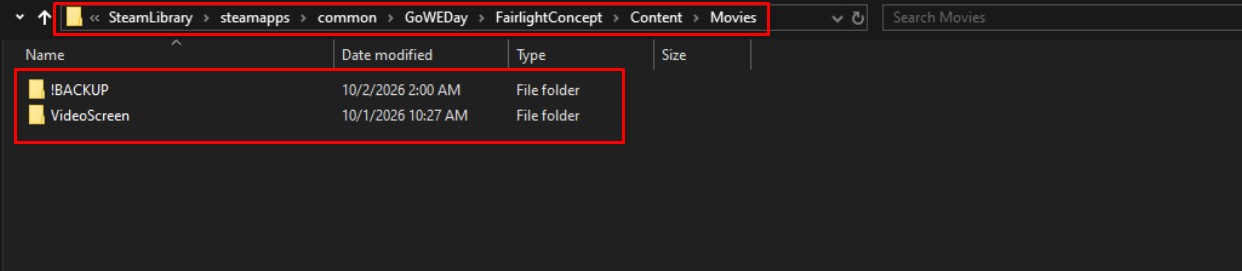
- Navigate into FairlightConcept, then Content, then Movies.
- Inside the Movies directory, create a new folder and name it !BACKUP.
- Drag the file named Bootflow_Logos.bk2 into your new !BACKUP folder.
That’s the whole job — once Bootflow_Logos.bk2 is tucked away in the backup folder, the game no longer has that boot sequence to play. Launch Gears of War: E-Day and you should skip straight past the logos.
I’d keep the backup folder exactly where it is rather than deleting anything. Renaming it to !BACKUP with the exclamation mark keeps it sorted at the top of the directory, which makes it easy to spot and just as easy to undo if you ever want the intro back. You only need to move that single file — don’t touch anything else in the Movies folder.
How to Find the Gears of War: E-Day Install Location
If you don’t already know where the game lives on your drive, Steam makes this painless. Open your library games list, right-click on Gears of War: E-Day, and choose Properties, then Installed Files, then Browse…. That drops you directly into the install directory, which is where you’ll start the file path from the previous section.
Running Into Problems?
If something doesn’t work the way you expected, drop a note in the thread below and I’ll do my best to help you sort it out. And if you’ve found a method that works on a version I couldn’t test — particularly the GamePass build — post it. I’ll try it myself, and if it holds up I’ll fold it into this guide so the next person doesn’t have to figure it out from scratch.